Hardware: a practical CGI guide
CPU, GPU, RAM, VRAM and storage each limit different work; find your bottleneck before buying.
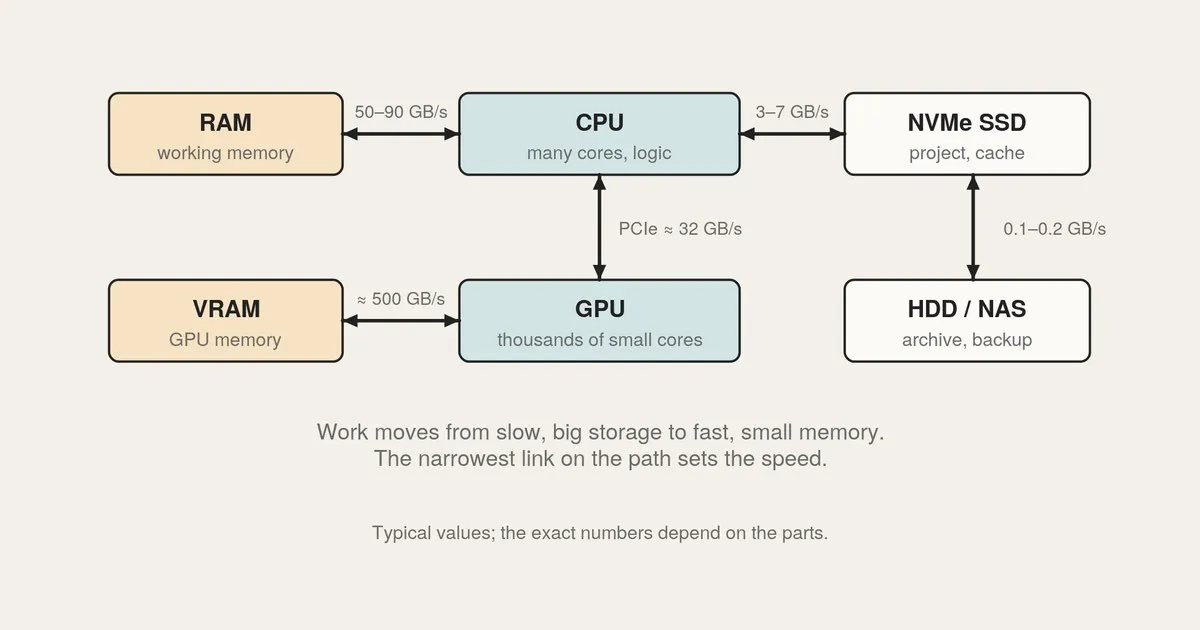
A render that takes 40 minutes instead of 4 changes how many ideas you can test in a day. Hardware choices are also the largest cost of the profession, so the right question is not “what is the best?” but “what is the bottleneck for my work?”.
Key points
- CPU, GPU, RAM, VRAM and storage each limit different work; find your bottleneck before buying.
- Render time = frames × minutes per frame ÷ 60 ÷ machines. 250 frames × 6 min = 25 hours on one machine.
- Multiply any delivery estimate by 2–3 for revisions and tests.
- Keep about 20 % of the SSD free; buy for daily work and rent peaks in the cloud.
The Parts and What They Do
- CPU: Many general cores. Used for simulation, geometry, scene preparation, many renderers (Houdini SOP/DOP, Arnold CPU, Karma CPU).
- GPU: Thousands of small cores, with its own fast memory (VRAM). Used for GPU rendering (Cycles, Redshift, Octane, Karma XPU), viewport, denoising, real-time (Unreal), AI tools.
- RAM: Holds the scene, caches, simulation state. Houdini simulations and large scenes are RAM-hungry; running out means swapping to disk and slowing to a crawl.
- VRAM: The scene must fit in GPU memory to render on the GPU (some engines can go out-of-core with a penalty). VRAM is often the real GPU limit, not speed.
- Storage: Fast SSD for the working project and caches; large (HDD/NAS) storage for archives. A simulation cache can be hundreds of gigabytes.
- Display: An accurate, calibrated monitor matters more for a lookdev artist than an extra GPU.
Apple Silicon vs. NVIDIA
| Apple Silicon (M-series) | PC with NVIDIA GPU | |
|---|---|---|
| Memory | Unified: GPU can use most of the system RAM | Separate: GPU limited to its own VRAM |
| Ray tracing | Hardware ray tracing from M3 onward; Metal backends in Cycles, Redshift, Octane | Mature hardware ray tracing (RTX) in all major GPU renderers |
| Power and noise | Very efficient, silent laptop-class | High power, upgradeable, louder |
| Software coverage | Blender, Houdini, Cinema 4D, Unreal run natively; a few tools lag | Widest coverage; CUDA/OptiX is the industry default |
| Upgradeability | None: choose memory at purchase | GPU, RAM, storage can be changed |
- Rule of thumb: Apple Silicon is excellent for learning, modeling, look development, animation and medium simulation, especially with 32 GB or more of unified memory. For heavy GPU rendering, large fluid simulations and broad plugin support, a multi-GPU NVIDIA workstation or a render farm is still the standard.
- Do not buy for peak: Buy for 90 % of your daily work; rent the other 10 % in the cloud.
Estimating Render Time and Cost
- Time:
total hours = frames × minutes per frame ÷ 60 ÷ number of machines. - Example: A 10-second spot at 25 fps is 250 frames. At 6 minutes per frame on one machine: 250 × 6 ÷ 60 = 25 hours. On 5 machines: 5 hours.
- Cost:
cost = machine-hours × price per machine-hour. Cloud farms charge by GPU/CPU-hour; add storage and transfer. - Always add a safety factor: Revisions mean at least two full renders and many test renders. Multiply by 2–3 when you promise a delivery.
- Reduce time: Lower samples with a denoiser, render at lower resolution and upscale carefully, cache static elements, use instances, split into passes only when needed.
Render Farms and Cloud
- Local farm: Your own machines running a queue manager (Deadline, Flamenco for Blender, Houdini’s PDG/TOPs).
- Cloud farms: Pay-per-use services that run your scene on rented machines. Check that your plugins and render engine version are supported.
- Cloud workstation: A remote powerful desktop you work on over the network.
- When to rent: A deadline spike, a heavy simulation, a render that needs more VRAM than you own.
In the tools
- Blender: Preferences → System → Cycles Render Devices chooses CPU, CUDA/OptiX, HIP or Metal. Render Properties → Performance sets tile/memory behavior. Use Statistics in the viewport to watch memory.
- Unreal Engine 5: The console commands
stat unitandstat gpushow the time per frame spent on the game thread, drawing and the GPU. - DaVinci Resolve: Preferences → Memory and GPU chooses the GPU processing mode (Metal on Mac, CUDA on NVIDIA).
- System: Monitor temperature and memory; close other applications during long simulations; keep 20 % of the SSD free.
Common mistakes
- Buying a top GPU but only 16 GB of RAM.
- Not knowing which part is the bottleneck.
- Promising a delivery date with no render time estimate.
- Running a simulation on the system drive with a full disk.
- Updating the OS or drivers in the middle of a project.