Motion Capture and AI Animation: a practical CGI guide
Motion can be captured optically, with inertial suits or from video by AI, usually at 60–120 Hz.
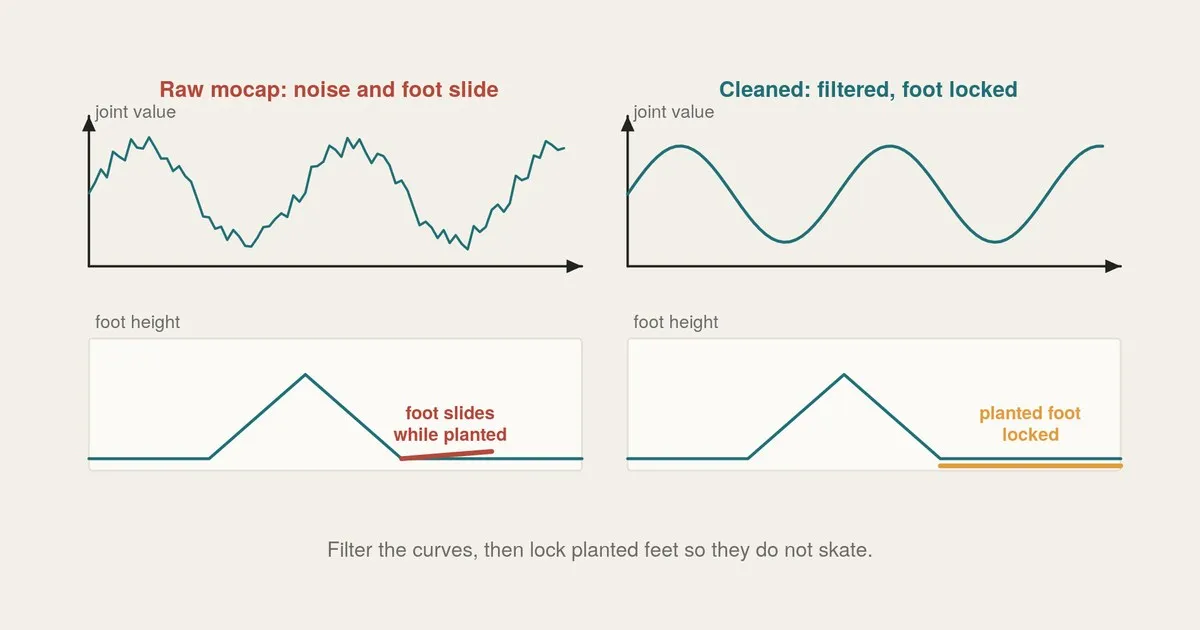
Capturing a real performance gives believable timing and weight quickly, and neural tools can now generate motion from text or video. Both are useful accelerators, and both fail in predictable ways. The craft is knowing what to trust, what to clean and what to keep under your own hands.
Key points
- Motion can be captured optically, with inertial suits or from video by AI, usually at 60–120 Hz.
- Mocap needs cleaning: foot sliding, jitter, intersections.
- Retargeting maps motion from one skeleton to another.
- Choose keyframe, mocap or AI by style, budget and time.
How Motion Is Captured
- Optical (marker-based): Reflective markers on a suit are tracked by many infrared cameras in a studio volume. The most accurate; expensive and fixed-location (Vicon, OptiTrack).
- Inertial suits: Sensors on the body measure rotation; they work anywhere but drift over time and have trouble with foot contact and absolute position (Xsens, Rokoko).
- Markerless video capture: Software estimates the skeleton from one or several camera videos. Cheap and fast; less precise, with errors in occlusion, fast motion and fingers.
- Facial capture: Head-mounted cameras or phone depth cameras drive blend shapes.
- Hand capture: Gloves or tracking cameras for finger motion.
- Performer and consent: The performer’s contract must cover use of the motion data, usage rights, and re-use.
Data and Formats
- Skeleton data: A hierarchy of joints and rotations per frame, usually at 60–120 Hz.
- Formats: BVH (simple skeleton animation), FBX (skeleton plus mesh), USD/Alembic.
- Scale and axes: Check units, up axis and rotation order on import.
- Takes and slates: Name every take, record the date, the performer and the notes.
- Calibration: The skeleton’s proportions must match the performer; A-pose or T-pose calibration at the start of each session.
Cleaning and Editing Mocap
- Noise and jitter: Apply a gentle filter (a low-pass filter or Euler filter); too much smoothing destroys the performance.
- Gimbal flips: Rotation jumps of 180° in Euler curves; fix with the Euler filter or quaternions.
- Foot slide: The foot moves while it should be planted. Detect contact frames and lock the foot with IK.
- Missing data (gaps): Marker occlusion produces holes; fill them with spline interpolation or manual keys.
- Drift: Inertial data may slowly slide; correct in post by anchoring contacts.
- Reduction: Convert dense per-frame keys to fewer, editable keys so an animator can adjust them.
- Performance first: Keep the energy and timing; correct only what is wrong.
Retargeting
- Retargeting: Transfer motion from one skeleton to another with different proportions.
- Mapping: Match joints one to one; a mascot with a big head or short legs needs scale compensation.
- IK solutions: Re-plant feet and hands on contact points to avoid sliding on the new body.
- Style adjustments: Exaggerate poses, change timing or add squash and stretch on top of the mocap.
- Layered corrections: Use animation layers: mocap base plus keyframe corrections.
- Props: Hand-held products must be constrained and checked for penetration; re-time the grab.
AI and Neural Animation
- Text-to-motion: Models that generate a skeleton animation from a description (“a person walks and picks up a bottle”).
- Video-to-motion: Markerless capture driven by neural networks from ordinary video.
- Motion in-betweening and style transfer: Tools that fill missing frames or change the style of an existing motion.
- Generative video: Models that create video directly without a 3D scene; not controllable like 3D animation and usually not usable for exact products.
- Typical failures: Foot sliding, floating, interpenetration of limbs and props, loss of weight, and lack of fine control over timing and poses.
- Where they help: Previs, background actions, reference for animators and rough first passes.
- Where they don’t: Hero acting, product interaction, branded mascot performance, and anything needing exact contact.
- Rights and disclosure: Check the model’s license, training data claims and commercial terms; label AI-generated content when required by the platform, client or law.
- Verification: Treat AI output as raw data; clean it with the same tools as mocap and review at full speed.
Choosing: Keyframe, Mocap or AI
| Situation | Best approach |
|---|---|
| Brand mascot with exaggerated acting | Keyframe |
| Realistic human in the background | Mocap or library clips |
| Previs of a human action | AI or markerless video |
| Product with a mechanical motion | Keyframe or simulation |
| Crowd in a distant shot | Library clips plus crowd system |
| Complex dance or sport action | Mocap, cleaned by an animator |
In the tools
- Blender: BVH/FBX import (File → Import), Action Editor, NLA Editor, Rokoko add-on, Retargeting add-ons (for example, Auto-Rig Pro retarget, or Rigify retarget helpers).
- Houdini: KineFX Motion Clips, Rig from Mocap, Skeleton Blend; FBX/USD import.
- Cleaning and retargeting: Maya HumanIK, MotionBuilder; open-source tools for markerless capture.
- AI motion tools: Evolve quickly; test with your own footage and keep a log of the tool, version and settings used.
Common mistakes
- Trusting raw data as final.
- Over-smoothing until the motion is dead.
- Ignoring foot contact.
- No consent or license for performer or model.
- Using AI motion for a branded hero without checking terms.