Transforms: a practical CGI guide
Every object has a transform: position, rotation and scale, stored as a 4 × 4 matrix. The order of operations changes the result.
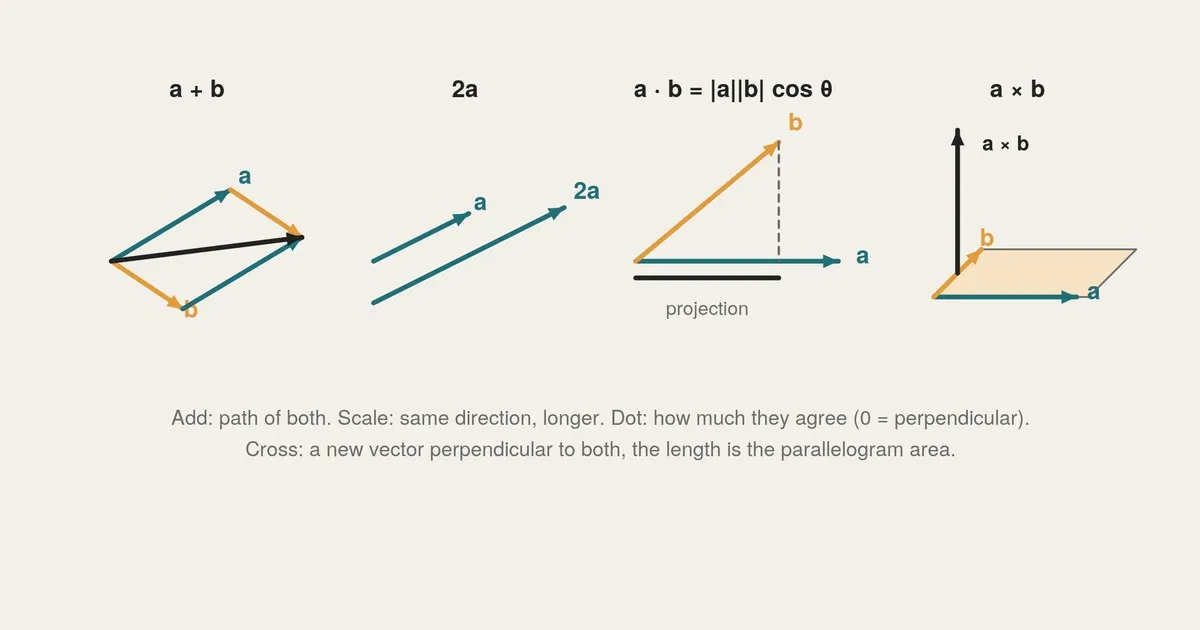
Moving, rotating and scaling feel like simple mouse gestures, but underneath they are vector and matrix operations. Understanding them explains broken rigs, flipping rotations, wrong normals after scaling, and why an animation curve misbehaves. This is the mathematics a 3D artist actually uses — no more, no less.
Key points
- Every object has a transform: position, rotation and scale, stored as a 4 × 4 matrix. The order of operations changes the result.
- The dot product of two unit vectors is the cosine of the angle between them: 1 = same direction, 0 = perpendicular, −1 = opposite. It is the heart of shading.
- Euler rotations lock when the middle axis reaches ±90° (gimbal lock); quaternions avoid it.
- Apply scale before modifiers, physics and export. Instances share one mesh and save memory.
Vectors
- Vector: An ordered set of numbers (x, y, z). It can mean a position, a direction, a velocity, a color — the numbers are the same, the meaning differs.
- Addition: Moving a point by an offset: P + v. Used for translation, displacement, forces in simulation.
- Scaling (multiplying by a number): Changes length, keeps direction (or reverses it if negative).
- Length (magnitude): |v| = √(x² + y² + z²). The distance between two points is the length of their difference.
- Normalization: v / |v| — a direction of length 1.
- Dot product: a · b = |a| |b| cos θ. For unit vectors it is the cosine of the angle between them.
- 1 = same direction, 0 = perpendicular, −1 = opposite.
- Lambert shading is a dot product: brightness ∝ N · L (surface normal · direction to light).
- Facing ratio, rim masks, “is this point in front of the camera” — all dot products.
- Cross product: a × b gives a vector perpendicular to both, with length |a| |b| sin θ. Used to build normals from polygon edges and to build local frames (tangent, bitangent, normal).
Matrices and the Transform Stack
- Transform: A rule that maps every point of an object to a new place. The three basic ones: translate (T), rotate (R), scale (S).
- Transformation matrix: A 4 × 4 table of numbers that holds a combined transform. Multiplying a point by it moves the point.
- Order matters: Scale-then-rotate-then-translate is not the same as translate-then-rotate. Most programs apply S, then R, then T around the pivot; changing the order is how you create orbits and offsets.
- Composition: Combining transforms means multiplying their matrices. A child’s final world transform is parent matrix × child local matrix.
- Inverse transform: Undoes a transform. Used to express a world position in an object’s local space (“where is the light relative to this bottle?”).
- Non-uniform scale and normals: Stretching an object unevenly distorts its normals; renderers must use the inverse-transpose of the matrix for normals. If shading breaks after squashing an object, apply the scale.
- Negative scale: Mirrors the object and flips its winding order, which may flip normals.
Hierarchies and Pivots
- Parent–child hierarchy: Children inherit their parent’s transform. Move the bottle, the cap goes with it; rotate the cap, the bottle stays.
- Pivot (origin): The point an object rotates and scales around. A cap pivots at its thread axis; a laptop lid at its hinge; a door at its hinge line.
- Null / empty / locator: An object with no geometry used only as a transform: a control, a pivot helper, a group.
- Offset groups: Insert an empty between parent and child to separate “where it sits” from “how it animates”. The child’s animation then starts from clean zero values.
- Freeze / apply transforms: Bake the current transform into the geometry so the object reads position 0, rotation 0, scale 1.
- Advertising use: Exploded product views, opening packaging, and assembly animations are hierarchy problems first and animation problems second.
Rotation: Euler Angles and Quaternions
- Euler angles: Rotation stored as three angles about X, Y and Z, applied in a set order (XYZ, ZXY…). Easy to read and to key.
- Rotation order: The order changes the result. Choose it so the axis that rotates most is evaluated last (for a turntable, the up axis).
- Gimbal lock: When the middle rotation reaches ±90°, the first and third axes line up and one degree of freedom is lost. Curves flip and spin unexpectedly.
- Euler flipping: Interpolating between 179° and −179° takes the long way round. Fix with an Euler filter or by unrolling values (−181°).
- Quaternion: A four-number representation of rotation (w, x, y, z) without gimbal lock and with smooth shortest-path interpolation (slerp). Used by game engines, motion capture and rigging internals.
- Axis–angle: Rotation as one axis and one angle; intuitive for “spin 30° around this direction”.
- Practical rule: Animate in Euler with a sensible rotation order; let the software use quaternions internally; switch to quaternions for free-tumbling objects and camera rigs that roll.
Instancing and Copies
- Instance: A copy that shares the original’s geometry and only stores its own transform. Thousands of instances cost little memory.
- Point instancing: Placing instances on points that carry transform attributes (position, orientation, scale). This is the basis of scattering, crowds and procedural layouts.
- Orientation attributes: In Houdini, copies read
Nandupvectors or anorientquaternion from each point; in Blender Geometry Nodes, Instance on Points reads rotation fields.
In the tools
- Blender: N-panel shows location, rotation (with mode: XYZ Euler, Quaternion, Axis Angle) and scale. Ctrl+A applies transforms. Set Origin moves the pivot. Graph Editor → Key → Discontinuity (Euler) Filter fixes flips.
- Unreal Engine 5: The Details panel shows Location, Rotation and Scale for every actor; the Outliner builds parent–child hierarchies by drag and drop; Alt + middle mouse drag moves the pivot temporarily.
Common mistakes
- Animating objects with unapplied scale or misplaced pivots.
- Keying rotation through ±90° on the middle axis and fighting the curves instead of changing the order.
- Using one object for both placement and animation instead of an offset group.
- Non-uniform scaling a finished model and then wondering why the shading looks dented.